No file reshuffle
PureDesk works at the desktop icon layer, so your documents, folders, and shortcuts stay exactly where Windows expects them.
Windows desktop layer
PureDesk does not relocate your desktop files or replace the Windows file system. It hides the native desktop icon layer first, then brings the real content back through a lightweight floating surface.
Why it feels natural
PureDesk works at the desktop icon layer, so your documents, folders, and shortcuts stay exactly where Windows expects them.
Most of the time you keep only a small orb on screen. The larger surface appears only when you actually need desktop access.
Added, renamed, and removed items refresh automatically, so the panel always reflects your real desktop.
Product tour
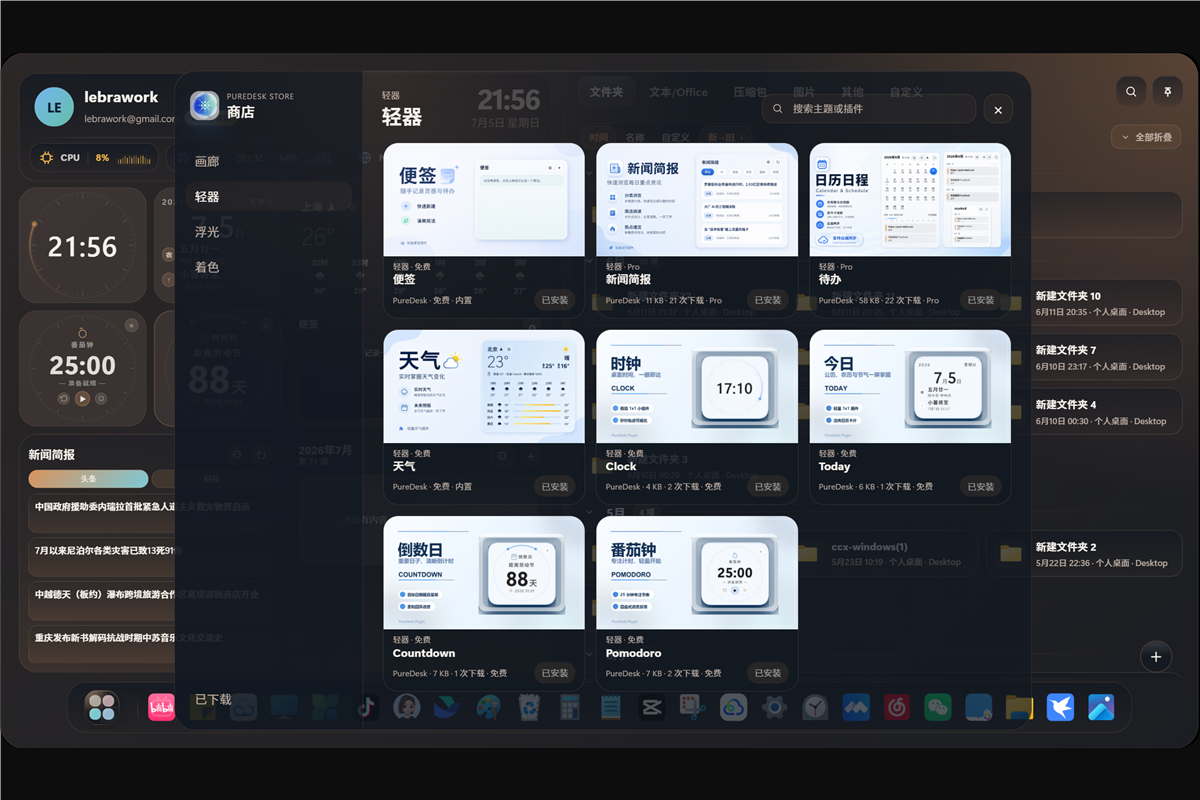
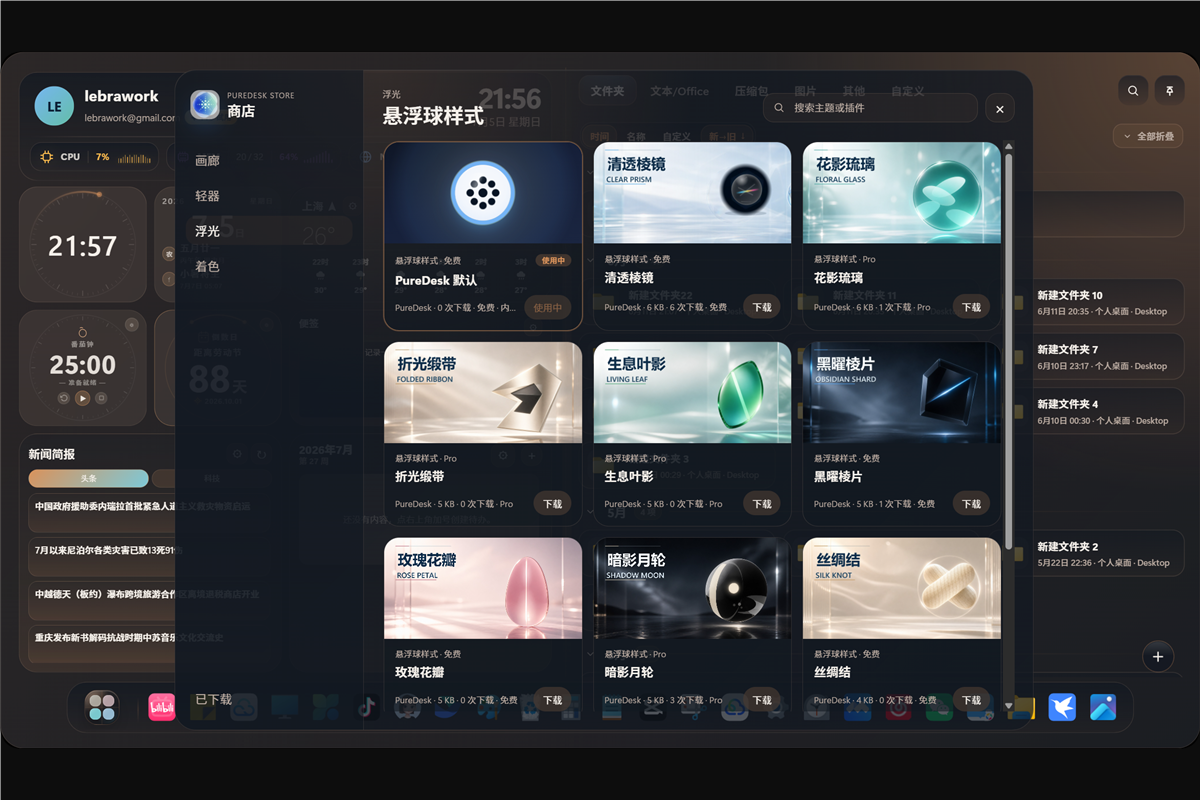
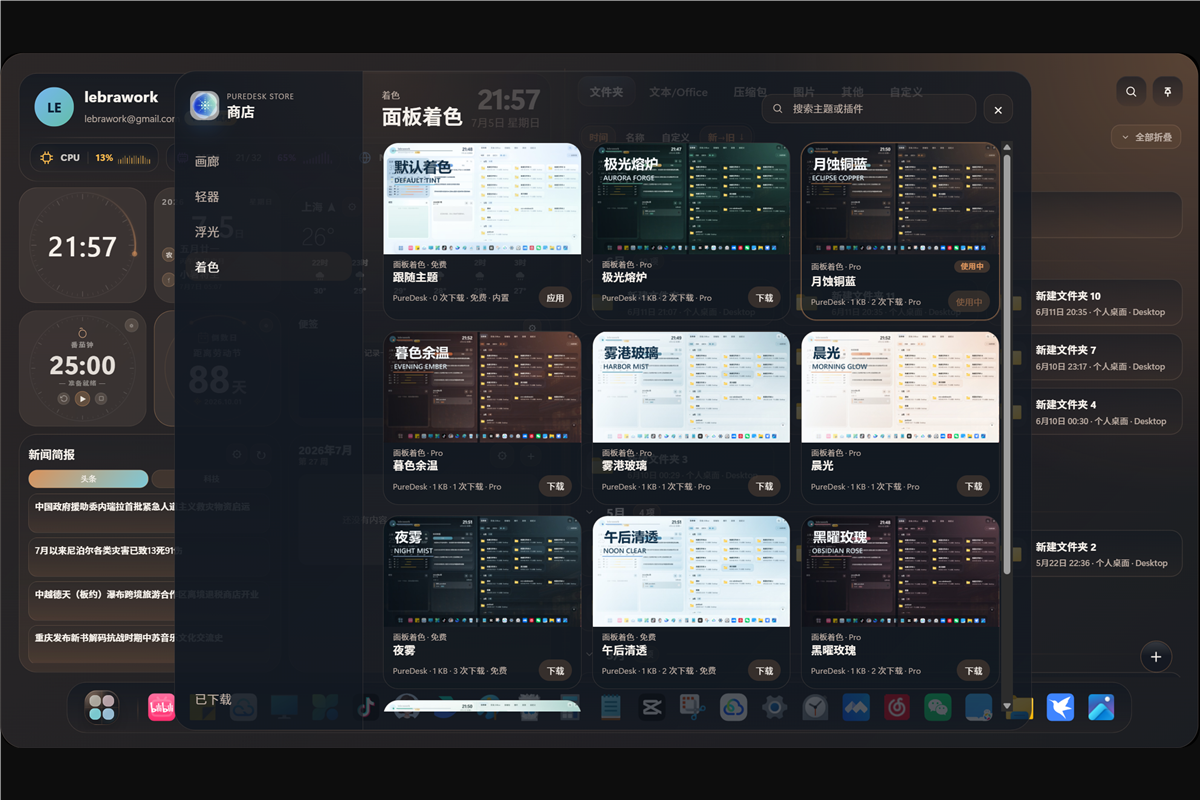
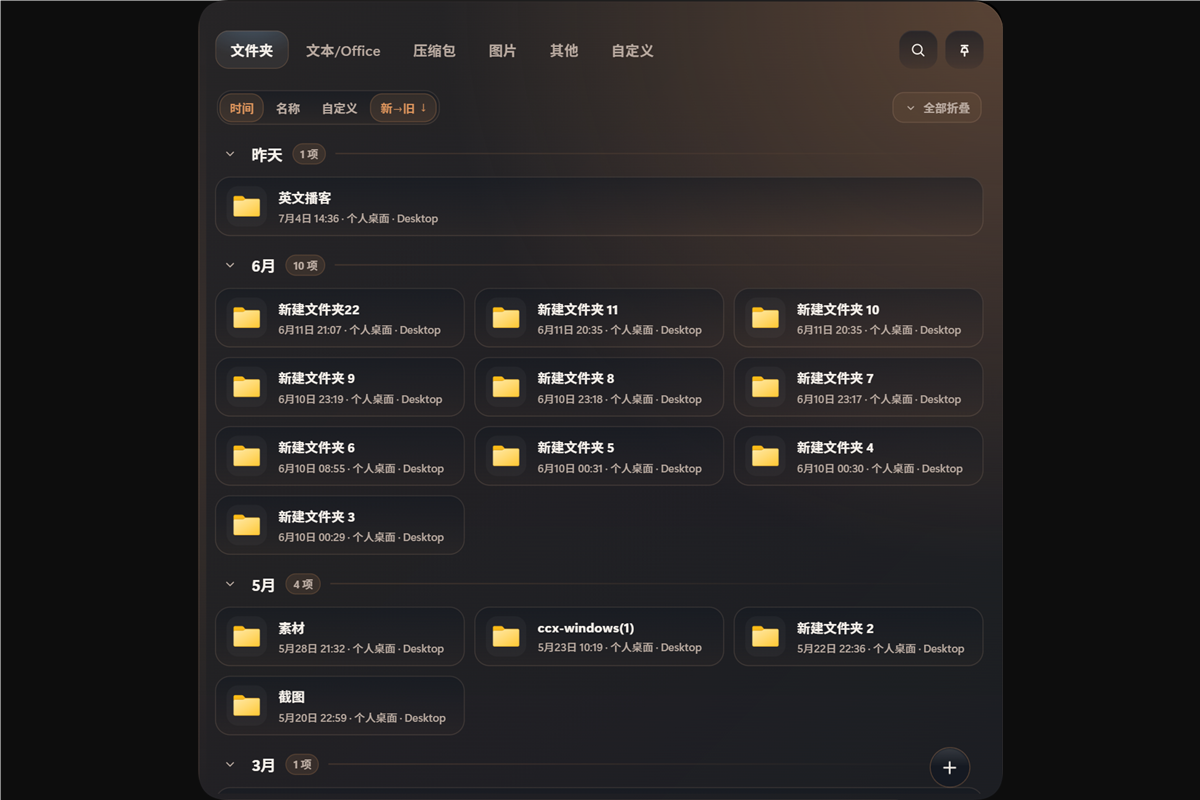
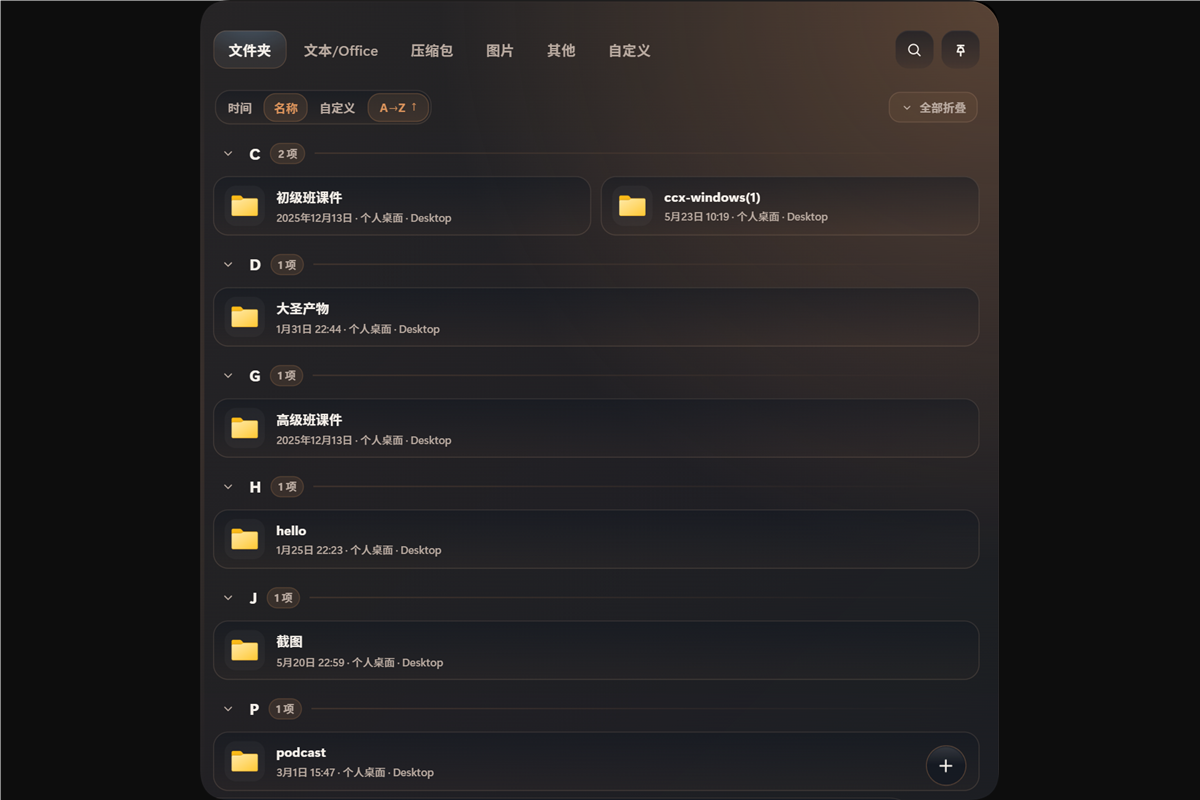
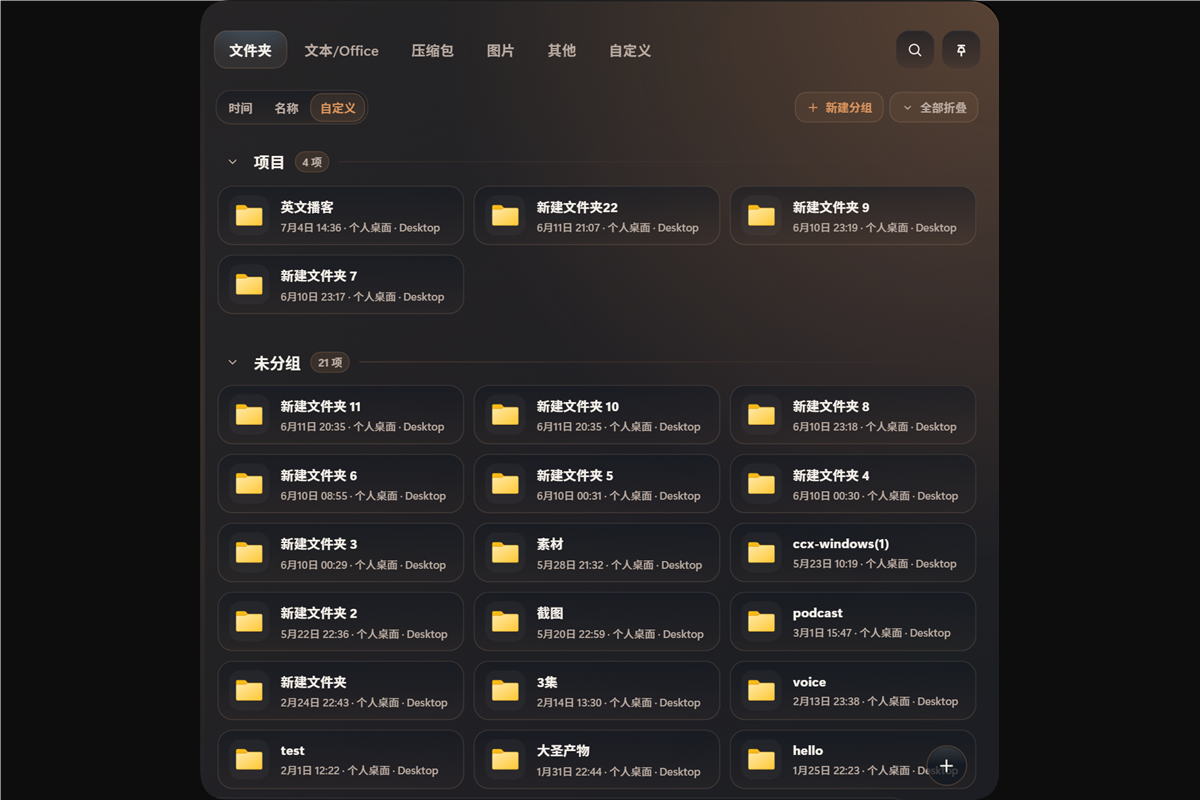
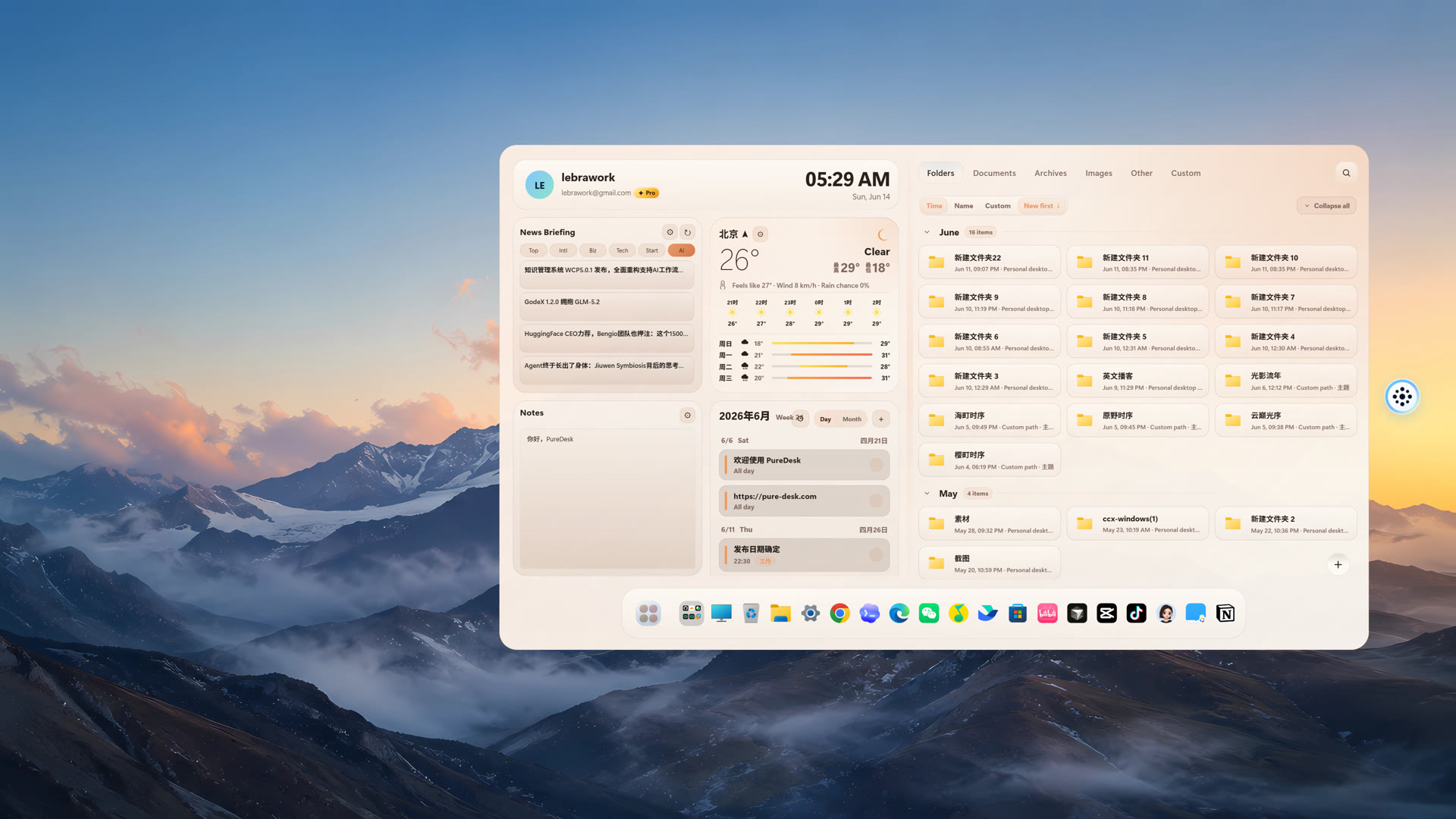
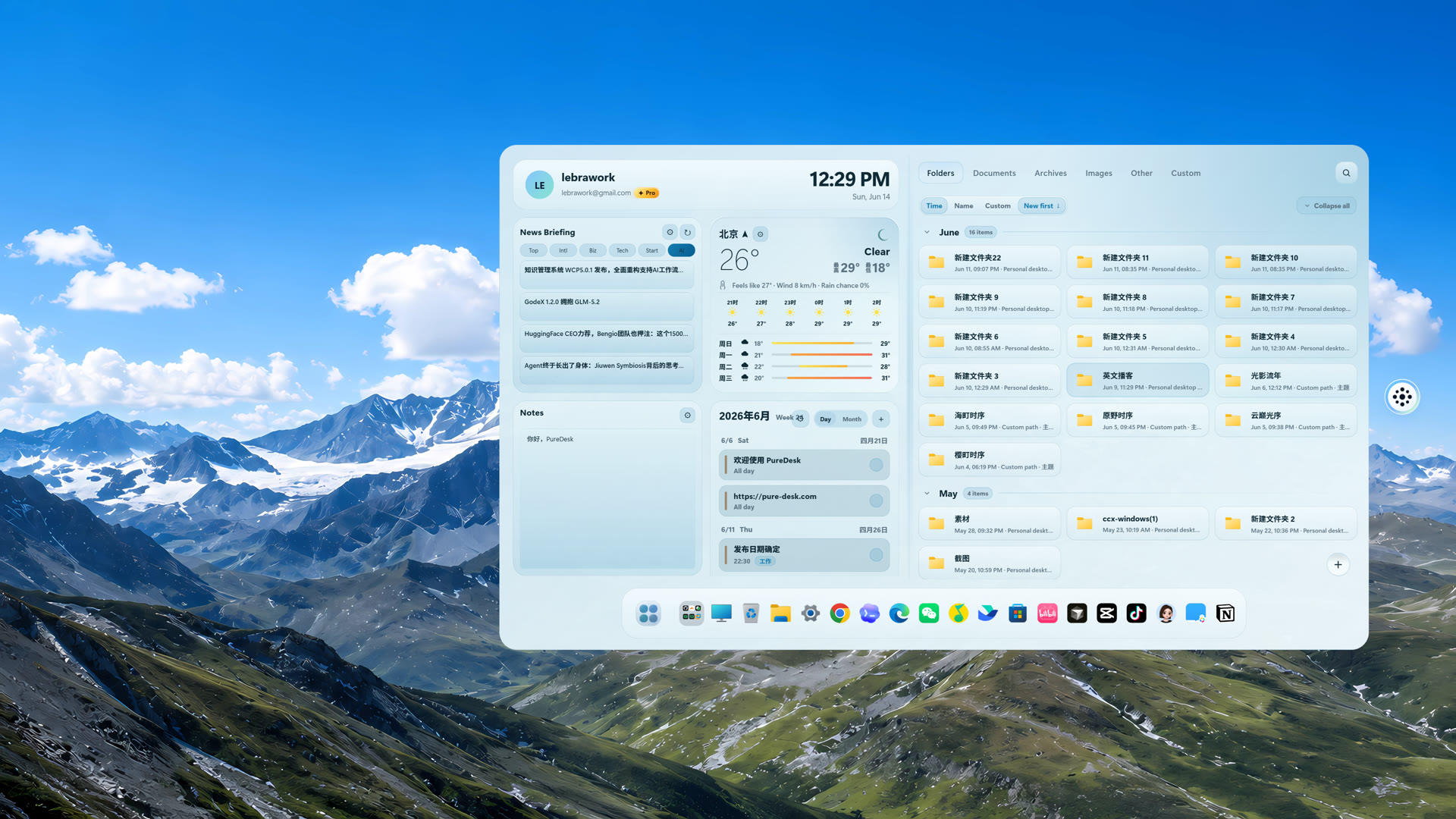
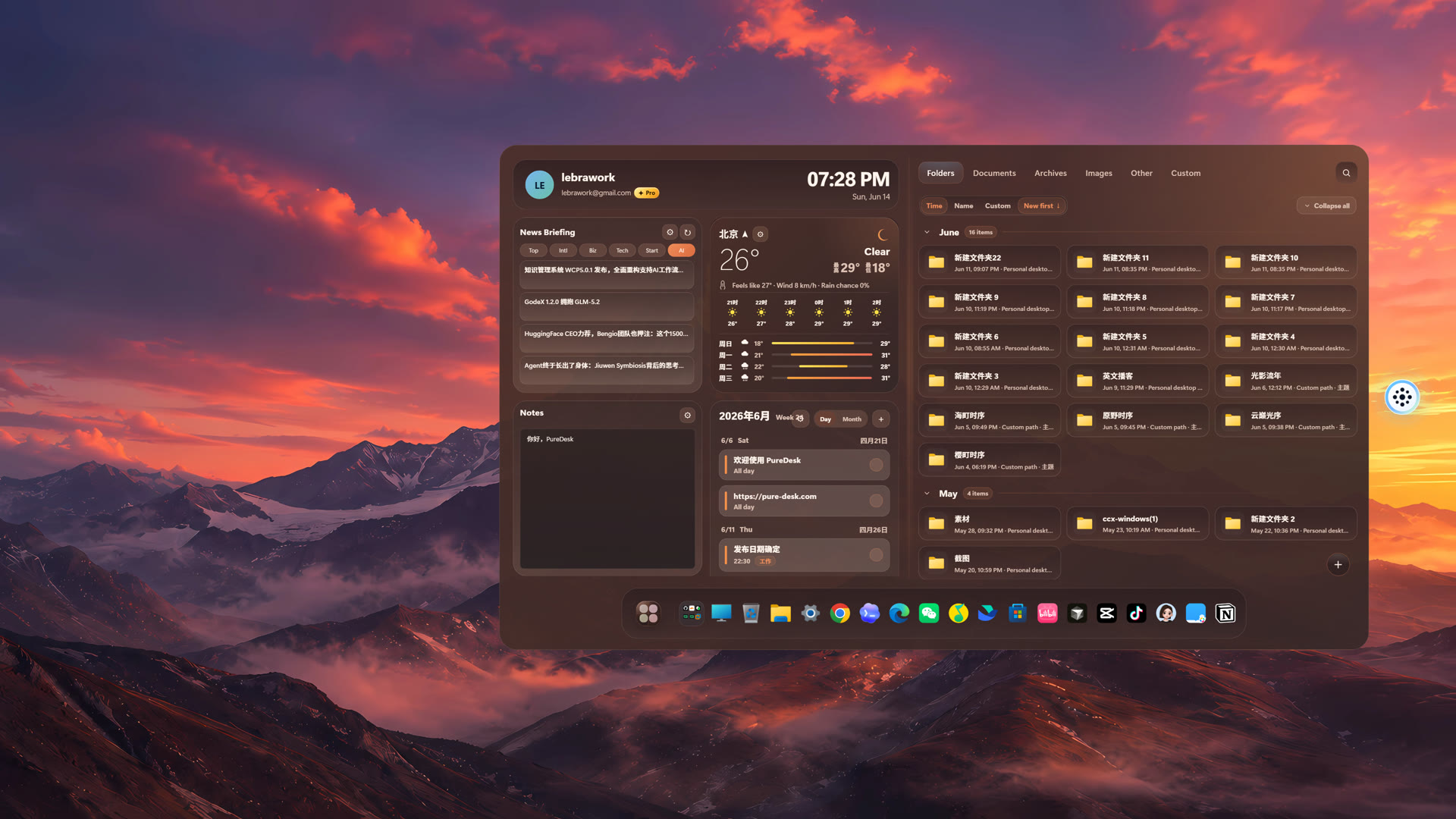
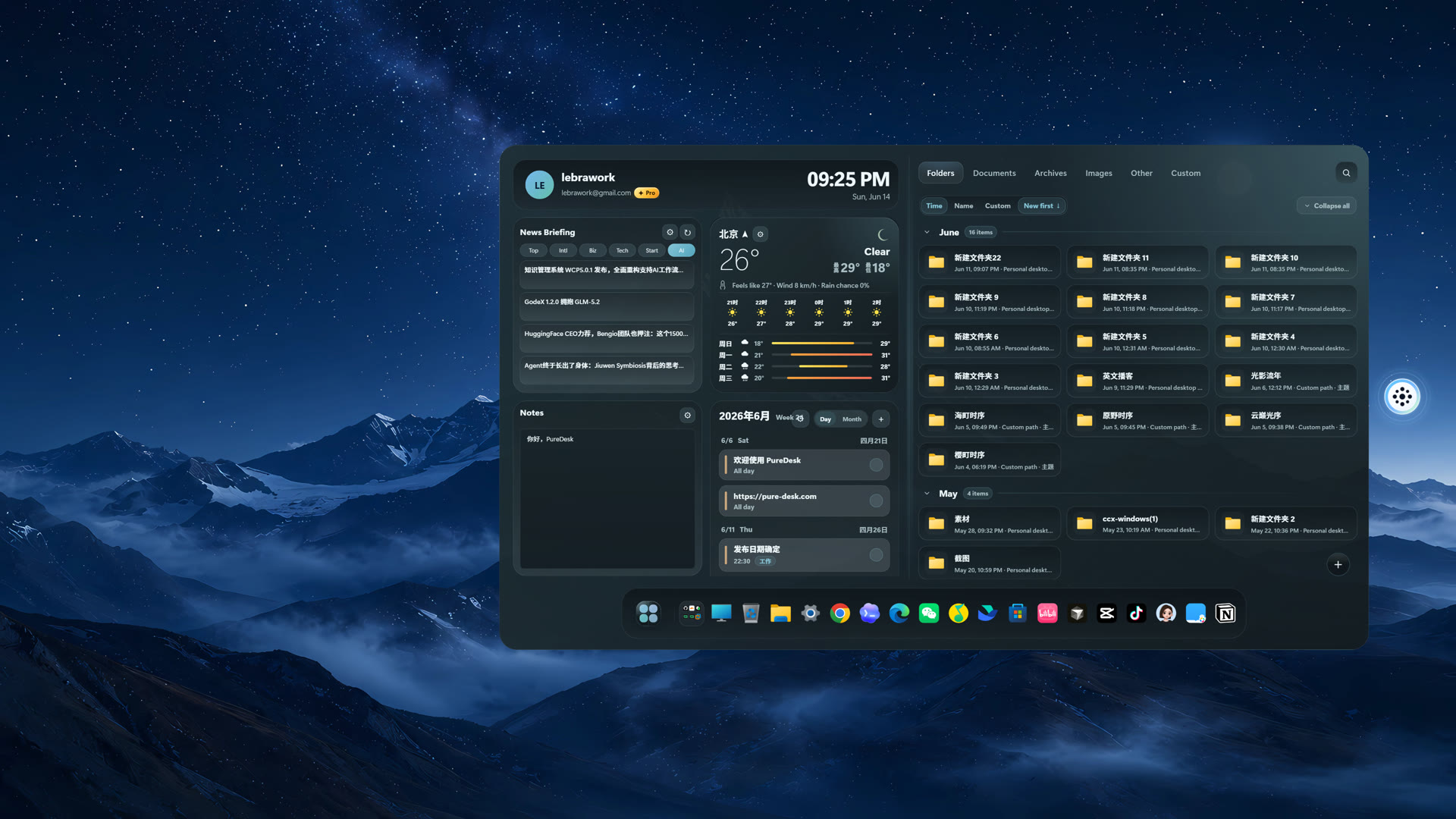
The site uses screenshots from the product itself. The point is not to sell a concept layer, but to show how PureDesk fits into a normal Windows workflow.
Clean desktop
When you want the wallpaper and workspace back, PureDesk hides the desktop icon host directly instead of moving content into a proprietary library or another app-specific container.
Floating access
The orb stays at the screen edge with very low visual weight. When you hover or trigger it, the desktop surface expands back into view without taking over your workspace full time.
Weather snapshot
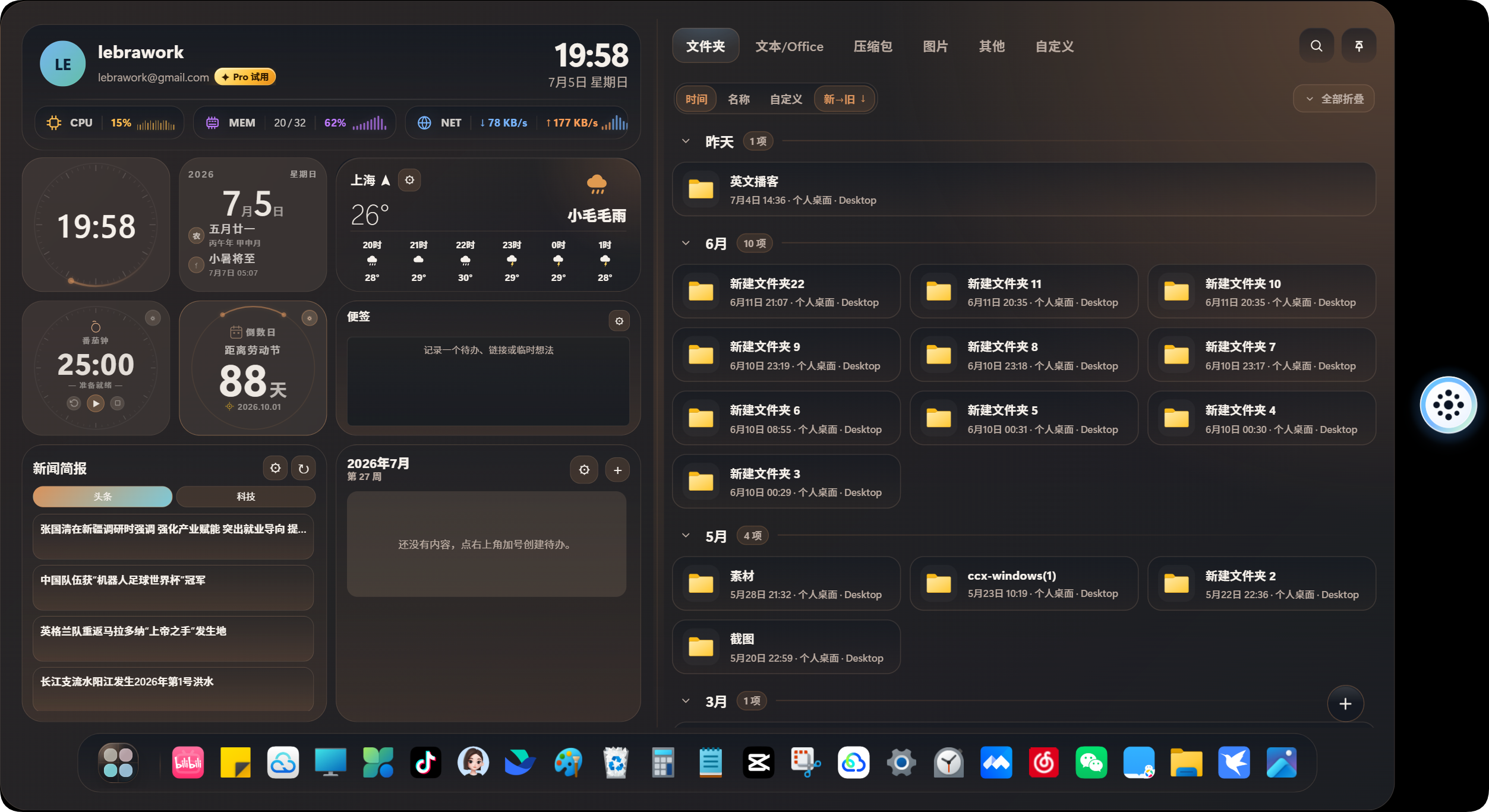
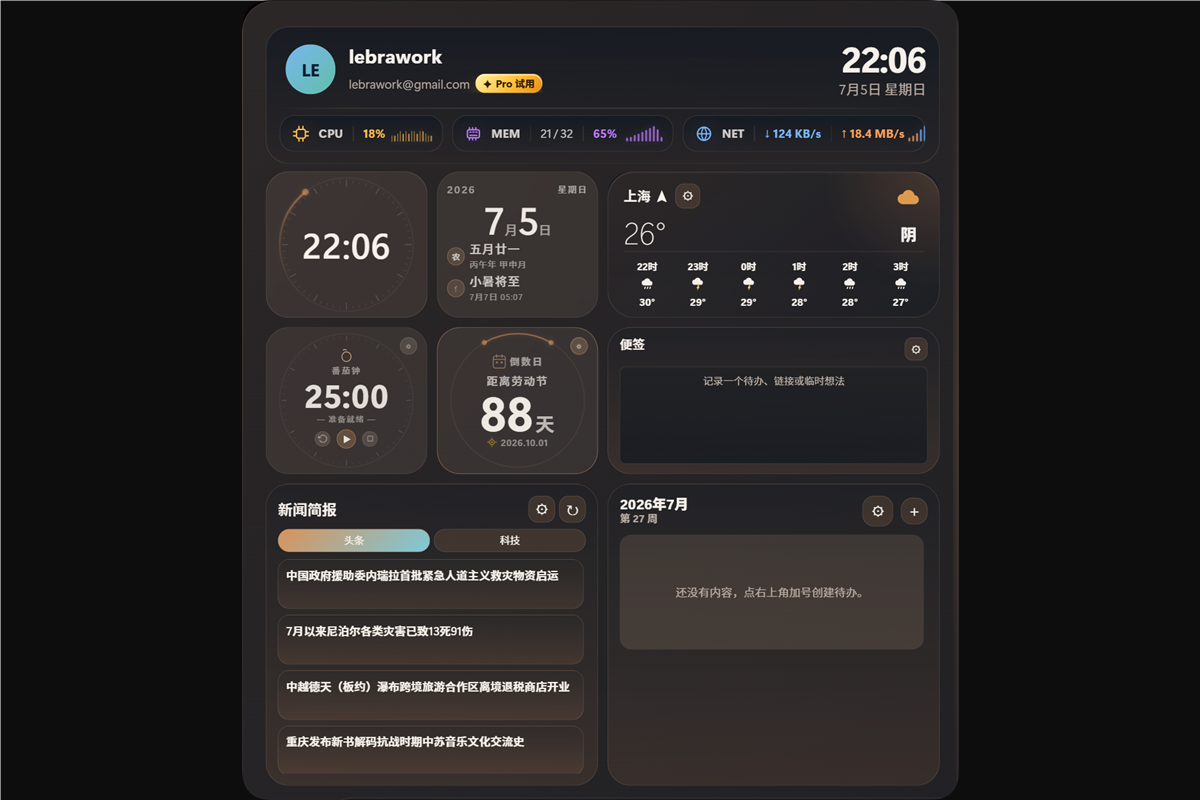
PureDesk can keep current weather, temperature, feels-like, and a few compact environment details inside the left rail. You get useful context before diving into desktop content without opening a separate widget or site.
News briefing
The sidebar can also show a compact news feed with switchable categories such as top stories, world, business, tech, AI, and startups. It gives you a quick read without pulling you away from the desktop surface.
Live desktop surface
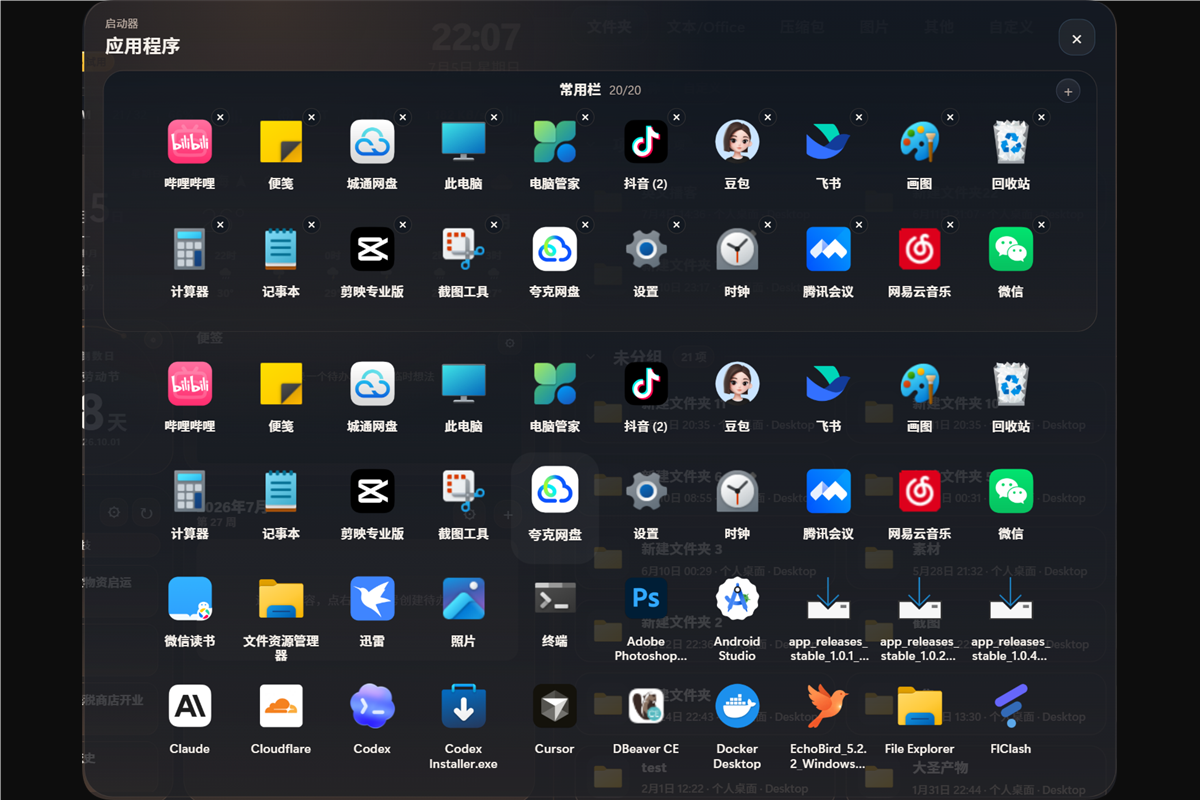
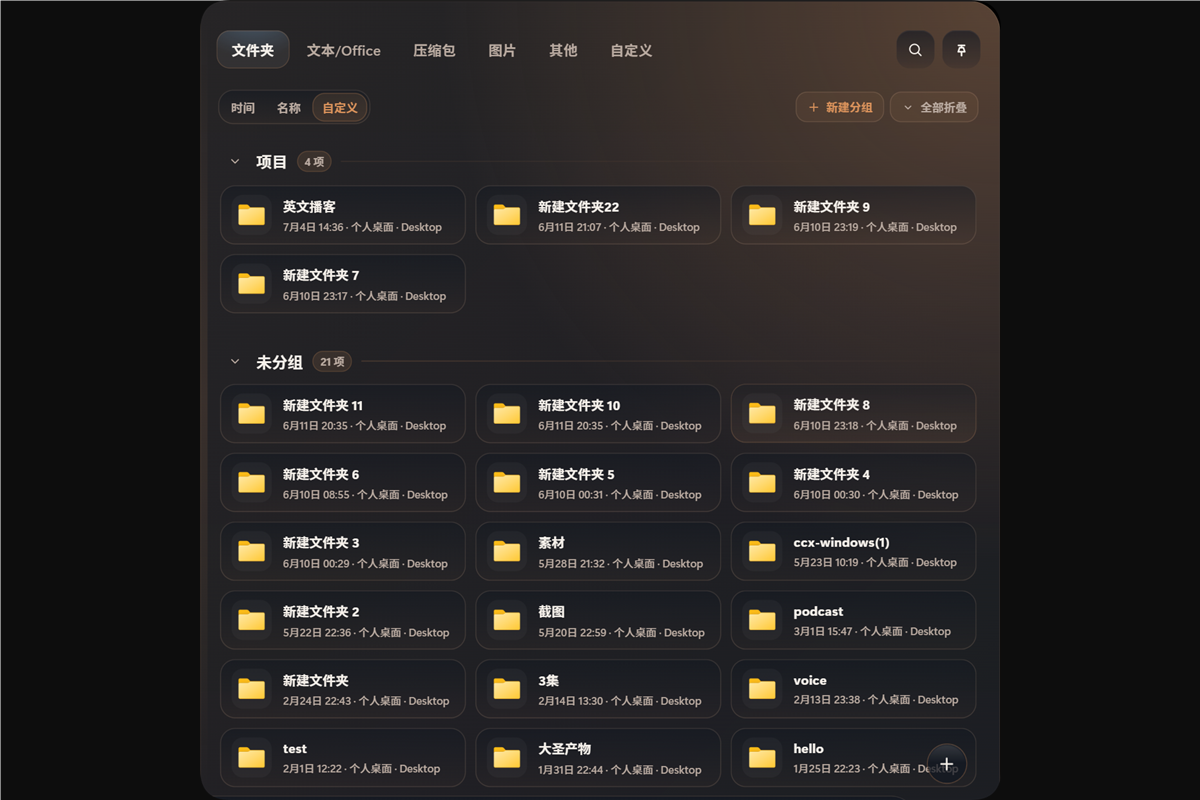
Apps, folders, documents, images, and archives can be grouped into categories. You still open with the default app and drag items into other workflows exactly like you would from the desktop.
Built-in settings
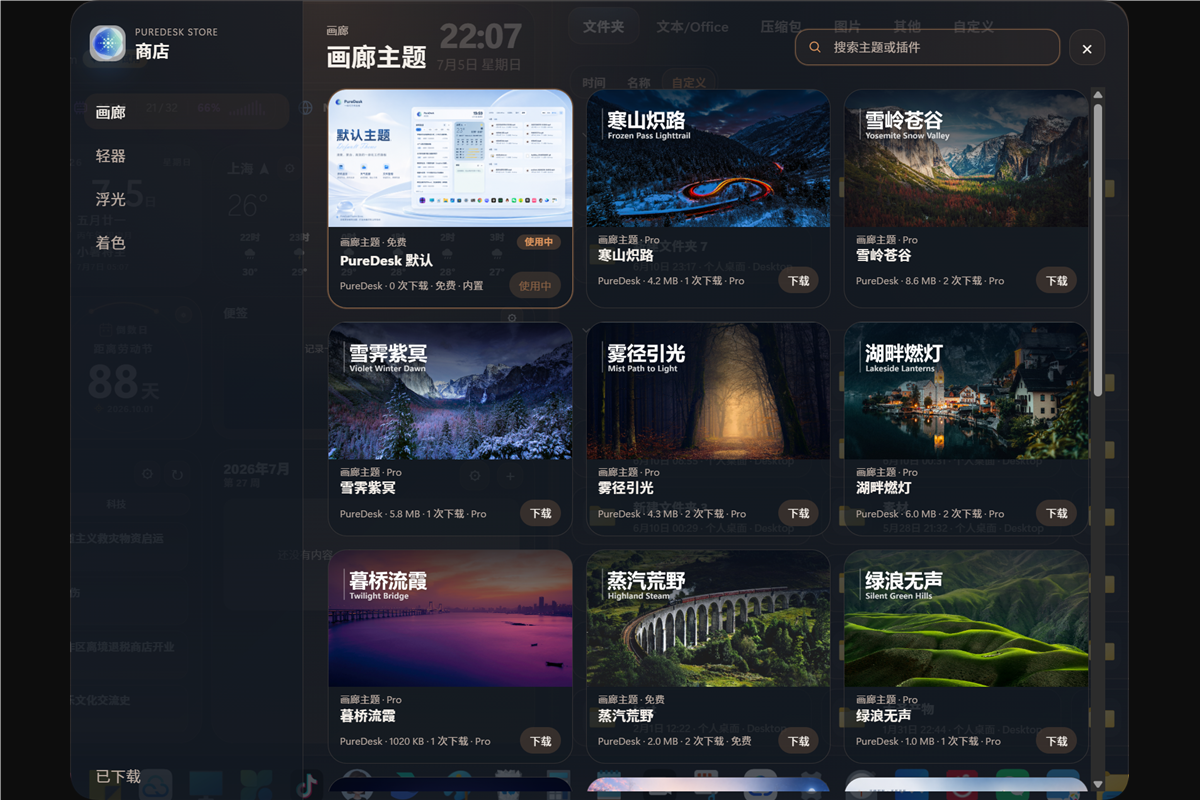
If you want PureDesk to match your screen, theme, or launch habits, the controls are already exposed in a focused settings window instead of buried in deep menus.
Workflow
There is no import step and no second file system to learn. PureDesk hides, gathers, expands, and gets out of the way.
Your wallpaper and workspace become cleaner immediately while the files remain in the original Windows locations.
Apps, folders, documents, and images become easier to scan because they are grouped instead of spread across the desktop.
What changes is the entry surface, not the native file behavior underneath it.
FAQ
PureDesk is easy to evaluate because its boundaries are simple and visible.
No. It hides the Windows desktop icon layer and mirrors the content from the user and public desktop folders inside its own panel. The files stay where they already are.
Yes. PureDesk includes a desktop icon toggle and restores native icons on exit when it was the app that hid them.
It is much closer to a desktop cleanup layer. The goal is to reduce visual clutter without forcing you to move content into another workspace.
Yes. The current version is built around Win32 desktop behavior and targets modern Windows environments.
Ready to try it
The current website is a static build and ships with the installer in the output directory, so it is easy to open locally and hand off as a product preview.
Install note
This warning does not mean PureDesk is bundling extra downloads or silently changing system settings. In practice it is Microsoft Defender SmartScreen treating an unsigned installer as unknown. If you downloaded the installer from the official PureDesk page or release package, you can continue with the two steps below.
The safest habit is simple: only run the PureDesk-Setup.exe linked from this page or from the official release package, and avoid copies re-uploaded through random file shares or chat attachments.
When SmartScreen blocks the installer, click the "More info" link in the lower-left area so Windows expands the full launch options.
After the details expand, the "Run anyway" button appears. Once you have confirmed the installer came from the official PureDesk download, click it to continue.